Creating Import File Templates
The Create Templates task helps you create import file templates that are used to import files for FMS device and group Nodes, so that you don't need to manually create the column headers for each file. Each template generated contains the specific column header information required for the file type you wish to import (device definition, group definition, or group entries). Once a template is generated, it will be saved to the specified directory location.
Creating Templates
Templates can be created for device definition, group definition, and/or group entries import files as follows. You do not need to create all templates at one time. Leaving the text box for any directory path blank will skip creation of that template.
To Create an Import File Template
- Start CygNet FMS Toolbox, and then click Import to access associated tasks.
- Click Create Templates to access the Create Templates dialog box.
|
Create Templates |
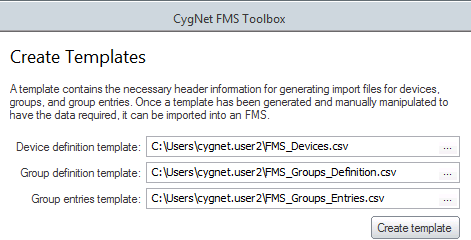
- For each file type (Device definition, Group definition, and/or Group entries) for which you wish to create a .csv import file template, do the following.
- Click ... to access the Select Location to Save Template dialog box, and browse to the directory location to which you wish to save the template.
- Type a template File name into the text box.
- Verify that the selected file type is comma-separated value (.csv).
- Click Open to select the import file template location, which will also populate the corresponding text box in the Create Templates dialog box.
- When all template locations are set, click Create template to save the import file template(s) to the specified location(s). Results will appear in the bottom text box.
Preparing CSV Files for Import
Once your .csv file templates have been created, the next step of the process is to edit the files to prepare them for the subsequent step, where you will import the files back into FMS.
See Configuring and Editing Device CSV Files for more information.


